Even for a meeting Minutes Ago didn’t record, if you have an audio or video file of it, you can import it. The file becomes a recording in the Recordings list of the Recordings & Minutes window, transcribed on this Mac with Apple’s speech recognition or another model you choose. From then on it is an ordinary saved recording: play its lines, edit them, identify and name speakers, write minutes, copy, export, or transcribe it again with another model.
This is a Minutes Ago Pro feature (in the direct version, it works once you activate a license). It is not covered by the 5 free tries. Free tries are for saving from the recording only; before you buy, importing audio files is not available.
Ways to import
There are four ways in. Each one leads to the import sheet for one file.
- Drop the file on the Recordings & Minutes window — anywhere in it: the left pane, the live pane or a recording. While you drag a file over the window, the whole window is covered with “Drop to transcribe”.
- File › Import Audio File… (⌘O) — the File menu is in the menu bar while Minutes Ago is in front with its Dock icon shown (The File menu). ⌘O works in Minutes Ago’s windows with the Dock icon hidden too.
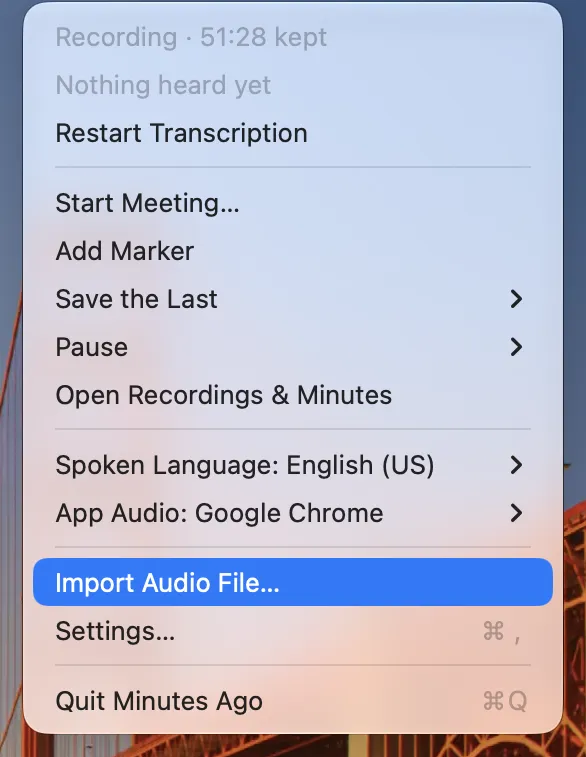
- Import Audio File… in the menu — in the Minutes Ago menu in the menu bar, above Settings…. This is the way in when the Dock icon is hidden.
- The + at the bottom of the left pane, next to “Recordings: N · size”.
File › Import Audio File…, the menu item and + open the Recordings & Minutes window (if it is closed) and a panel to choose the file (“Choose an audio or video file to import and transcribe.”, with an Import button).
- Until you have saved recordings, the left pane also says “Drop an audio or video file here to transcribe it.”
- If you haven’t bought Minutes Ago Pro, the menu items read “Import Audio File… (Pro)” (“Import Audio File… (License)” in the direct version), and every way in opens the purchase sheet instead.
- One file at a time. If you drop several files, only the first is imported, and the sheet says “Only the first file is imported. Import the others one at a time.”
- While the window shows another sheet or dialog, it doesn’t take a drop, and the menu items only bring the window to the front.
- It isn’t available from Finder’s Open With, by dropping on the Dock icon, from agent access, Shortcuts or the command-line tool.
Files you can import: audio files (such as m4a, mp3, wav, aac, caf and flac) and videos with an audio track (such as mp4 and mov). Only the sound of a video is used. There is no length limit. A file that can’t be imported opens no sheet: the bottom of the left pane shows why in red for 10 seconds, for example “This file can’t be read.” or, for a video without sound, “This file has no audio track.”
The import sheet
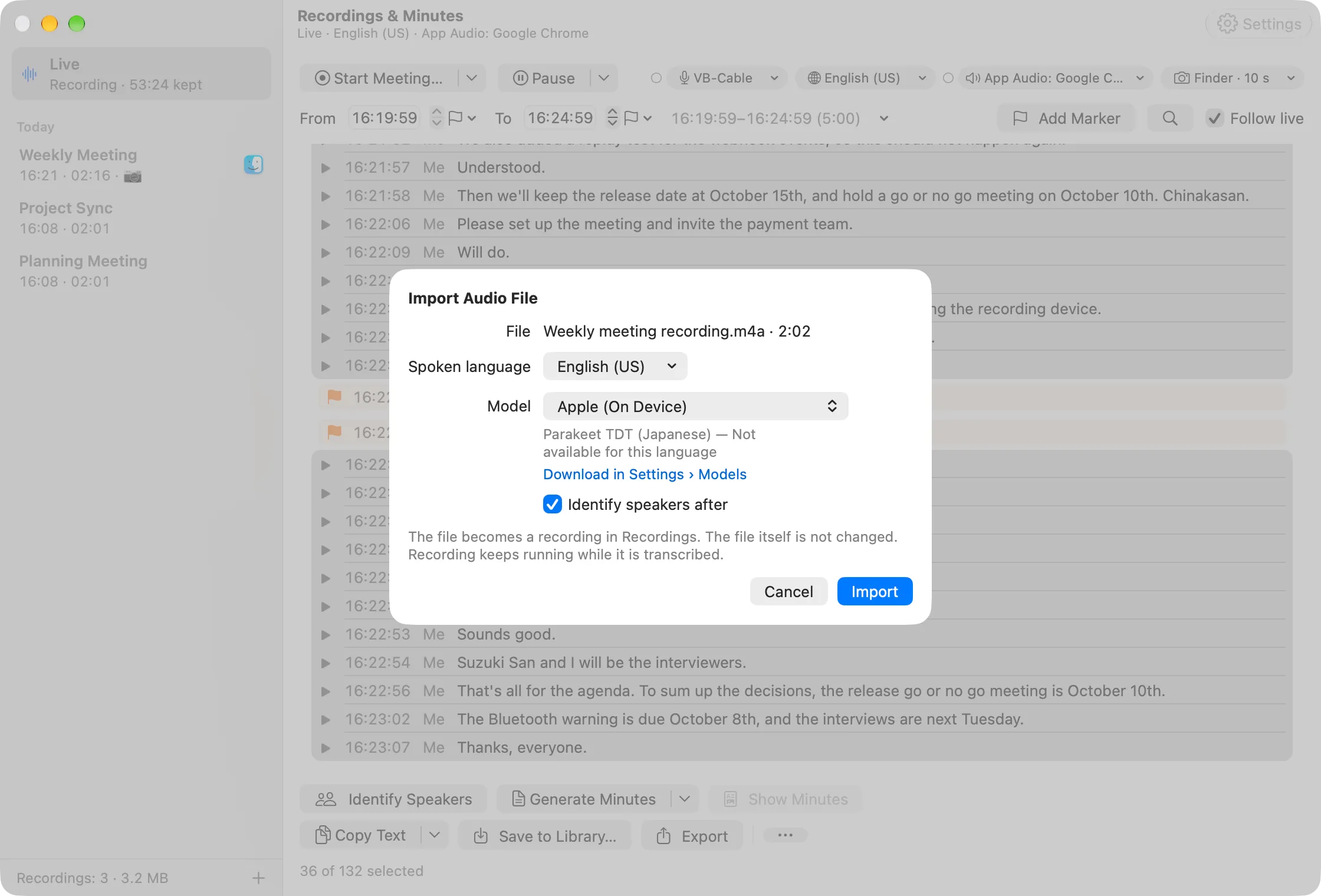
After you drop or choose a file, the Import Audio File sheet opens on the window:
- File — the file’s name and length, for example “Weekly 2026-10-01.m4a · 58:12”.
- Spoken language — the language spoken in the file. It defaults to the spoken language in use now (the meeting’s while a meeting runs, otherwise Spoken Language in the menu). For a language you haven’t used yet, macOS downloads its language model first (“Downloading the language model… 40%”).
- Model — Apple (On Device), Whisper large-v3-turbo, Whisper large-v3-turbo (Compact), Parakeet TDT (Japanese) or Cohere Transcribe (Beta). A model you haven’t downloaded yet (“Download in Settings › Models”), one that can’t transcribe the spoken language (“Not available for this language”) and one being optimized (“Optimizing in Settings › Models”) are greyed out. The model you chose last is remembered, together with the Transcribe Again sheets (Transcribe again with another model). Videos work with every model.
- Identify speakers after — when on, speakers are identified as soon as the transcript is done, and the lines are labelled M1, M2, … (off by default; your choice is remembered). The first time, the speaker model (about 200 MB) is downloaded.
- Under them: “The file becomes a recording in Recordings. The file itself is not changed. Recording keeps running while it is transcribed.”
- Import starts; Cancel closes the sheet.
Only one transcription runs at a time. While another import, Transcribe Again… of a range or a saved recording, or a transcript a recording is making for another model is running, Import is greyed out, with “Wait until the other transcription is done.”
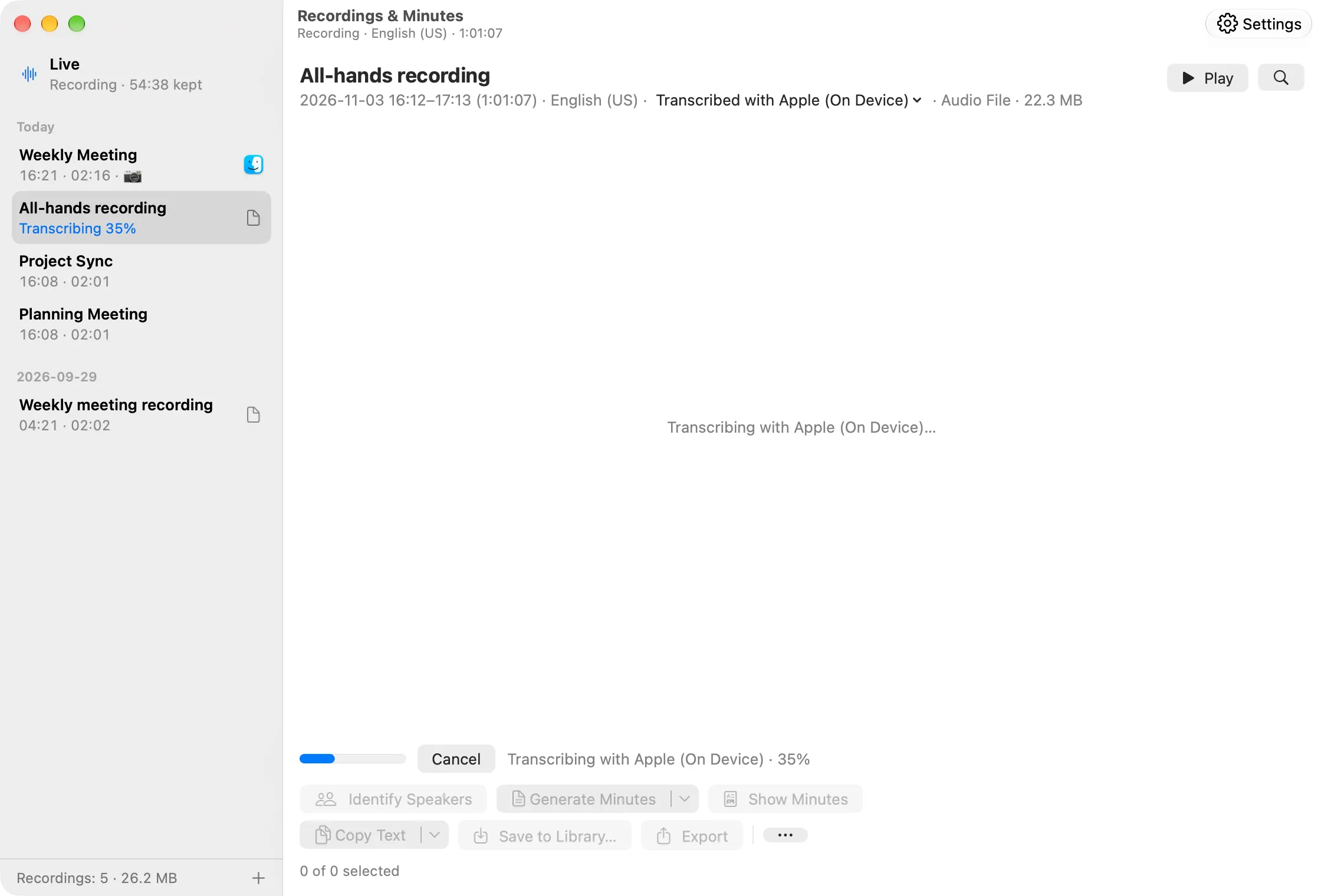
While it is transcribed
- Preparing the audio — the sheet shows “Preparing the audio… 40%” with Cancel while the file’s sound is converted into the recording’s audio. It takes seconds (about 2.5 seconds for 30 minutes of audio on the development Mac).
- The recording appears — the sheet closes, and the new recording appears in the left pane under the file’s date, selected and scrolled into view. Its row reads “Transcribing 40%”.
- Transcribing — the recording’s pane shows “Transcribing with Whisper large-v3-turbo · 40%” with Cancel. With a model other than Apple, the model is loaded first (“Loading the model…”, which takes seconds for Whisper on the GPU; “Loading the model… (can take 10 minutes or more on the Neural Engine)” for Whisper on the Neural Engine, “Loading the model… (first time only, up to 15 minutes)” for Parakeet TDT and “Loading the model… (about 2 minutes)” for Cohere Transcribe). The lines appear all at once when it is done. How long it takes depends on the model (Transcription models).
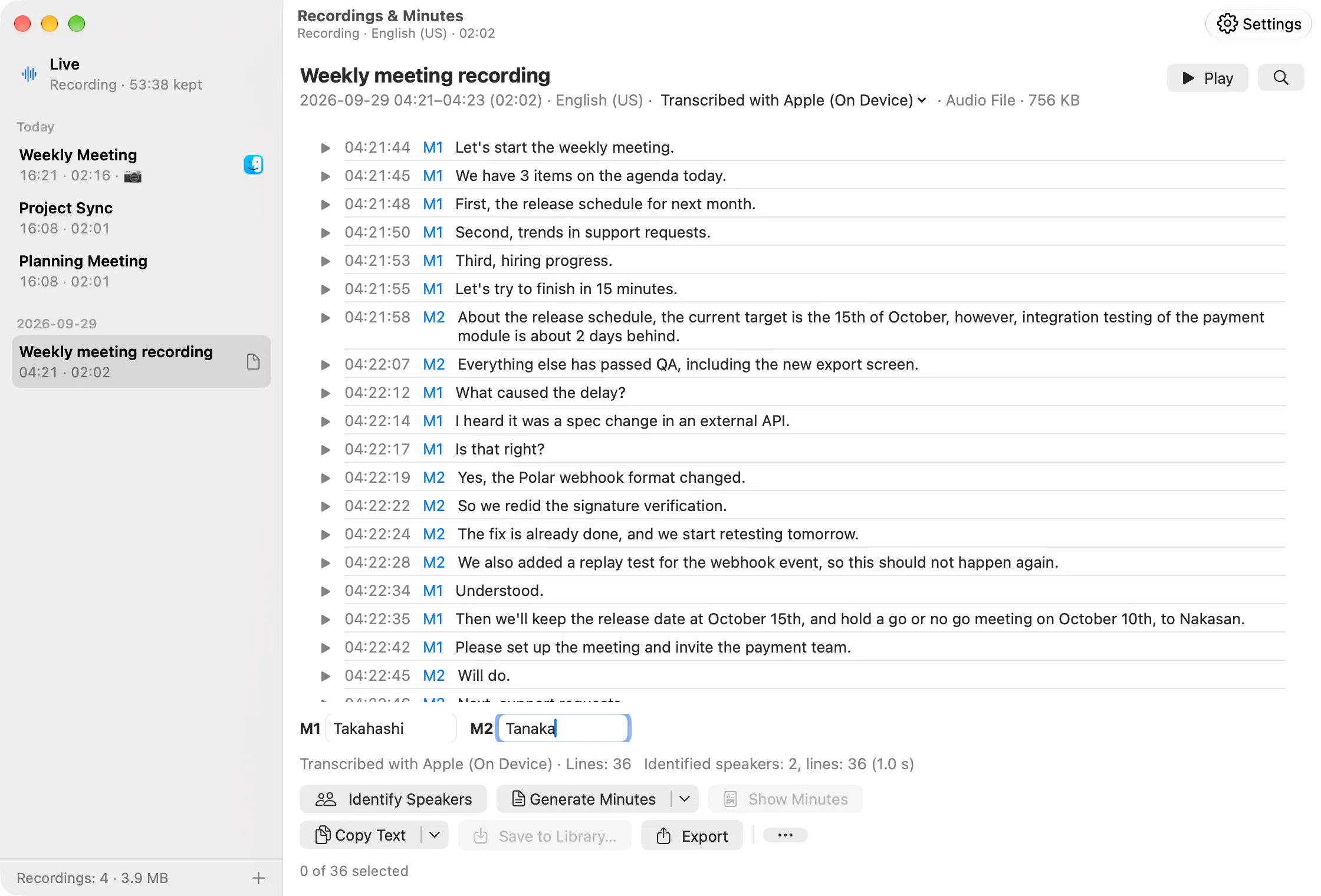
- Done — “Transcribed with Apple (On Device) · Lines: 36”. With Identify speakers after on, speaker identification follows (once any other speaker identification, and a speaker model download in Settings › Models, is done).
You can open other recordings or the live pane meanwhile, or close the window: the import goes on.
Recording keeps running
While a file is imported, recording and live transcription carry on (live transcription always uses Apple’s speech recognition). Only if the Mac’s speech recognition runs short of resources does Minutes Ago pause live transcription, try again, and resume live transcription when it is done (also when you cancel). Meanwhile the recording’s pane shows “Live transcription is paused until this is done.”, and the menu’s second line reads “Transcription: paused while an audio file is transcribed”.
Stopping, failures and quitting
- Cancel — in the sheet while the audio is prepared, or in the pane while it is transcribed: the import stops and its recording is deleted, so nothing is left. Deleting the recording while it is imported (Delete…), and Delete All Saved Recordings…, do the same.
- Failures — if the import fails (for example “The model is not downloaded. Download it in Settings › Models.”), its recording is deleted too. A failure while the audio is prepared is shown in red in the sheet (Cancel closes it), for example “The audio couldn’t be written. Check the free space on this Mac.”; a failure after the sheet has closed is shown in red at the bottom of the left pane for a minute.
- Nothing to transcribe — a file that gives 0 lines (silence, for example) keeps its recording, so you can transcribe it with another model.
- Quitting — quitting while a file is imported asks “Stop importing “…” and quit?” (“The recording made from the file so far is deleted. The file itself is not changed.”; Stop Import and Quit, or Cancel). During a meeting, this is asked first, then the meeting’s question. Restarting to change the app’s language stops the import and deletes its recording without asking.
- Identify speakers after is not part of the import: quitting doesn’t ask about it, and the recording stays as it is.
- A forced quit or a crash — while the audio is prepared, the unfinished recording is removed at the next launch and never appears. While it is transcribed, the recording remains with its audio only: its pane says “Nothing transcribed in this recording”, and you can transcribe it from the “Transcribed with …” menu in its header (A transcript for each model) or delete it.
The imported recording
An imported recording is a saved recording like the others (Saved recordings).
- Name and date — it is named after the file, without its extension (rename it in its header, or with Rename… in the right-click menu). Its date is the file’s date: the creation date recorded in the file, else the file’s creation date, else the time you imported it. It is listed under that day.
- How to tell it apart — in the left pane it has a document icon where other recordings show the app’s icon, the detail line of its header shows “Audio File” in place of an app, and Transcribe Again… names its track “Audio File”.
- Everything works — ▶ and Space to play lines, editing and deleting lines, Copy Text ▾, Export… (⌘E), Export Transcript…, Show in Finder, Generate Minutes (Minutes of a recording), transcribing it again with another model, renaming and deleting (Renaming, exporting and deleting). Agents see it as a recording whose
sourceisfile(Agents and Shortcuts). - Speakers — Identify Speakers labels its lines M1, M2, … (the file is one track, kept as the microphone track). Name them in the name fields or by clicking a line’s label (Naming speakers).
- Times — lines show times of day counted from the file’s date (
HH:mm:ss), like other recordings. For times elapsed from the start of the file, use Export Transcript… with Timestamps set to Elapsed Time (Export Transcript); the playback bar shows elapsed time too. In the minutes prompt,{{date}},{{start}}and{{end}}are the recording’s date and times. - Export — Export… writes the converted audio as
.m4aand the transcript as.txt,.mdand.json, as for any recording (Exported files). The separate export of earlier versions (<original name>.txt,.mdand.json, timed from the start of the file) is gone. Export stays greyed out until the first transcript is done, and the reminder about recording consent isn’t shown for it. - Free tries — copying, exporting, minutes on this Mac and speaker names in an imported recording never use a free try, even if Pro is later refunded or the license is deactivated (it was made with Pro). Minutes from a provider outside this Mac follow the usual rules.
- Older versions — Minutes Ago 1.12 and earlier list an imported recording as “Saved by a newer version of Minutes Ago. Update the app to open it.” and don’t open it. It isn’t deleted, and opens again once you update.
What is stored
- The file’s audio, converted (AAC, mono; a video’s picture is not kept), and its transcript are kept as a saved recording in the app’s container (the
library/folder), together with its speaker labels and names and its minutes. Like any saved recording, it is not deleted by the retention period and stays until you delete it (Data and Privacy). - The original file stays where it is. Minutes Ago only reads it and never changes it, and keeps neither the original file itself nor its location. You manage the original file.
- The converted audio is written straight into the recording’s folder. While a file is transcribed with Parakeet TDT (Japanese) or Cohere Transcribe (Beta), a temporary audio file is kept in the app’s container (the
tmp/folder) and deleted when it ends (also when it is cancelled or fails; if the app quits meanwhile, at the next launch). - Nothing imported is written where the live audio and its transcripts are kept.
What leaves the Mac
Importing a file sends nothing. Transcription (with any model) and speaker identification happen on this Mac. Models are downloaded from Hugging Face only when you choose to in Settings › Models. Only if the minutes provider is outside this Mac (OpenAI, Anthropic, Google Gemini or an OpenAI-compatible server you set up) is the transcript text of the recording sent to that provider (never audio). Before sending, Minutes Ago names it and asks, for example: “The transcript will be sent to OpenAI.” (Confirmation before sending, Data and Privacy).