By default, Minutes Ago records, transcribes, identifies speakers and writes minutes on this Mac. The developer (Kurokoto Lab) receives no audio, transcripts, minutes, settings or usage data. There is no analytics, advertising or tracking, and no account. The Privacy Policy is the authoritative text.
What stays on this Mac
| Data | Where | When it’s gone |
|---|---|---|
| Microphone audio, and the audio of the app you chose (app audio) | In the app’s memory (default). When the app quits, it writes the recent audio inside the app’s container and picks it up at the next launch. Inside the app’s container during a meeting and when you choose the SSD in the settings | Deleted automatically after the retention period (30 minutes to 24 hours, 90 minutes by default). During a meeting, everything from its start is kept until the meeting ends (up to 24 hours). Erase Live Audio… deletes it immediately |
| Transcripts, speaker labels and the names you give, and markers (their times and the names you give them) | Same place (an SQLite database) | Deleted with the audio, on the same schedule. Erase Live Audio… deletes them immediately |
| Files you export (audio, transcripts, minutes) | The folder you choose | Never deleted by the app; you manage them |
| Saved recordings (what you save when a meeting ends or from a range in the Recordings & Minutes window, and what you create by importing audio files (the next row): audio, transcript (and, if you transcribe it with other models, one transcript per model), speaker labels and names, markers, screenshots, minutes, and the name you give it) | Inside the app’s container (the library/ folder, one folder per recording) |
Not deleted by the retention period; kept until you delete them. Delete them one by one in the Recordings & Minutes window, or all at once with Delete All Saved Recordings… in Settings › Library. Erase Live Audio… does not delete them |
| Screenshots (images of the window of one app you choose, taken during a meeting at the interval you choose, 3 to 60 seconds, and when you choose Add Screenshot; JPEG) | During a meeting, inside the app’s container (the shots/ folder). When the meeting is saved, they move into that recording’s folder |
Deleted when you discard the meeting, or choose Erase Live Audio… during the meeting. Once saved, kept until you delete the recording |
| The audio of the audio and video files you choose to import (Minutes Ago Pro), and their transcripts, speaker labels and names, and minutes | The file’s audio, converted (AAC; a video’s picture is not kept), and its transcript are kept as a saved recording inside the app’s container (the library/ folder), together with its speaker labels and names and minutes. The recording is named after the original file (without its extension), which you can rename, and dated with the file’s date (such as its creation date). The original file stays where it is (the app only reads it and does not change it; it keeps neither the original file itself nor its location) |
The same as saved recordings above (kept until you delete them). If you cancel an import or it fails, that recording is deleted. If an import ends partway, for example because the app was forced to quit, an audio-only recording may remain (delete it like any saved recording). You manage the original file |
| Temporary audio files while transcribing again (transcribing a selected range again, and transcribing with Parakeet TDT (Japanese) or Cohere Transcribe (Beta)) | Inside the app’s container (the tmp/ folder) |
Kept only during that transcription and deleted when it ends (also when it is cancelled or fails). If the app quits during it, they are deleted at the next launch. Erase Live Audio… also stops transcribing a selected range again and deletes its temporary file |
| Settings (including minutes presets, meeting presets, and the names, model names and server URLs of AI providers), replacement dictionary | The app’s preferences (in the container) | Same as the container (see Uninstalling below) |
| Downloaded models: the speaker model (Nemotron 3 Diarization, about 200 MB) and the transcription models you choose (Whisper large-v3-turbo 1.64 GB, Whisper large-v3-turbo (Compact) 645.7 MB, Parakeet TDT (Japanese) 619.1 MB, Cohere Transcribe (Beta) 2.19 GB including the speech detection model Silero VAD, about 1 MB) | Inside the app’s container | The speaker model is downloaded the first time you identify speakers, or from Settings › Models; transcription models only when you choose Download… in Settings › Models. Delete… in the same pane deletes them (the speech detection model stays when Cohere Transcribe is deleted). Otherwise same as the container. Apple’s speech models are managed by macOS |
| The API key of each external AI provider (one per provider), the agent access token | This Mac’s Keychain | See “What goes in the Keychain” below |
| Number of free tries used, last confirmed purchase state (App Store version), the license key and activation details (direct version) | This Mac’s Keychain | See “What goes in the Keychain” below |
| Direct version only: update settings (whether to check automatically, the time of the last check), and the connection point (a socket) for the command-line tool | The app’s preferences; the socket inside the App Group container (~/Library/Group Containers/UY6Q9BGBWY.com.kurokoto.minutesago/) |
The settings: same as the container. The socket exists only while the app is running and stores no data (an empty folder may remain after the app is deleted) |
| App Store version only: the connection point (a socket) for agent access | Inside the app’s container (~/Library/Containers/com.kurokoto.minutesago/Data/) |
Exists only while agent access is on, and is removed when you turn it off or the app quits. It stores no data |
- The container is
~/Library/Containers/com.kurokoto.minutesago/. Recent audio is held in memory in 30-second pieces and written to the container when the app quits. During a meeting, and when you choose the SSD in the settings, it is written to the container as 30-second files. - Settings › General › Live audio switches it to the SSD. The confirmation shows about how much would be written to the SSD per 24 hours with your current settings (about 1.6 GB with the microphone and app audio). On the SSD, a crash, a forced quit or a power loss loses at most 30 seconds. In memory (the default), a crash, a forced quit or a power loss loses the kept audio; quitting, restarting and updating do not.
- Transcription is done on this Mac: live transcription with Apple’s speech recognition, and transcribing again and importing audio files with the model you choose (Apple (On Device), Whisper, Parakeet TDT (Japanese) or Cohere Transcribe (Beta), all Core ML on this Mac). No audio is sent for transcription. See Transcription and Models.
- Minutes of live audio are not stored in the app. They are shown on screen and become a file only when you choose Save as Markdown. Minutes of a saved recording are also kept in that recording’s folder.
- Screenshots are taken only when you turn on Take screenshots of and choose an app and an interval when starting a meeting (off by default). Only the chosen app’s window is captured, never the whole screen or other apps. While screenshots are being taken, the menu bar icon shows a red dot. A screenshot identical to the last one kept is not saved (Skip identical screenshots in Settings › Recording, on by default); Add Screenshot always saves. During a meeting, its name, start time and screenshot settings are kept in the container (
meeting.json) so that it can resume after the app restarts; the file is deleted when the meeting ends. - With Include screenshots on in Settings › Meeting Minutes (off by default), screenshots are also used to write the minutes. On this Mac (Apple Intelligence) they are read on this Mac and nothing leaves it. With a provider outside the Mac, see the connections below.
- Importing audio files also transcribes, identifies speakers and writes minutes on this Mac in the same way (unless you choose a minutes provider outside the Mac). The imported file’s audio (converted) and its transcript are kept inside the app’s container as a saved recording (the Saved recordings row above). The original file is not changed. Nothing imported is written where live audio and its transcripts are stored (the first two rows above).
Retention and automatic deletion
Choose the retention period with Keep the last in Settings › General (30 min, 1 h, 90 min, 2 h, 4 h, 8 h, 24 h; 90 minutes by default). Audio and transcripts (and markers) older than that are deleted automatically every 15 seconds. There is no unlimited setting. During a meeting, nothing from its start is deleted until the meeting ends (up to 24 hours). Saved recordings are not affected by the retention period. See Saving, Recordings & Minutes.
Erase Live Audio… and deleting saved recordings
Erase Live Audio… (at the end of Pause ▸ in the menu) deletes the live audio, the audio not saved yet (both in memory and in the container), and its transcripts (including speaker labels and names, and markers) on the spot. It always asks first, and Cancel is the default. During a meeting, it also discards the meeting and its screenshots. It does not delete saved recordings, exported files, settings, the replacement dictionary, downloaded models or Keychain items.
To delete saved recordings:
- One recording — right-click it in the list on the left of the Recordings & Minutes window and choose Delete… (or, with it open, ⋯ › Delete… or File › Delete…). Its whole folder is deleted: audio, the transcripts from every model, screenshots and minutes. This cannot be undone.
- All of them — Delete All Saved Recordings… in Settings › Library. The confirmation shows how many recordings and how much space; Cancel is the default. Live audio that is not saved yet is kept.
To delete parts of them:
- Lines — Delete Line in the right-click menu, or select lines and press ⌫ (one line goes at once with Undo for 8 seconds; more lines after a question). Lines are removed from the transcript only; the audio stays. In live audio, a deleted line is removed from the database at once. In a saved recording, it is removed only from the transcript of the model shown at the time; the recording’s transcripts from other models and its audio remain.
- One model’s transcript of a saved recording — Delete “model” Transcript… in the recording’s “Transcribed with …” menu, after a question. It is offered for the transcripts not shown (switch to another one first to delete the one you see), and not for Live (Apple), the transcript made while recording, which can’t be made again. The audio stays, so it can be transcribed again with that model.
- A screenshot — right-click it › Delete Screenshot…, after a question. This cannot be undone. During a meeting, a later screenshot can show the same screen again while it is still on screen.
To delete downloaded models, use Delete… for each model in Settings › Models. You can download it again there.
What goes in the Keychain
- The API key of each external AI provider (OpenAI, Anthropic, Google Gemini, an OpenAI-compatible server) — one per provider, only if you add that provider in Settings › Meeting Minutes › Providers. Removing the provider also removes its API key.
- Agent access token — created the first time you turn agent access on. In the direct version, Regenerate token replaces it. In the App Store version, the app’s own executable started by the agent reads it from the Keychain, so it never appears in the configuration.
- Number of free tries used and the last confirmed purchase state — for free tries, only the number used and the dates are kept, not which operation or range they were used for. They remain after the app is deleted, so that free tries are not reset.
- License key and activation details (direct version only) — removed by Deactivate This Mac.
Connections off your Mac (this is all of them)
Minutes Ago connects to anything outside your Mac only in the cases below. The Mac App Store version makes the seven under By default and Only when you choose it. The direct-download version makes six of those (all but the App Store purchase) and the two under Direct-download version only (items 8 and 9 in section 3 of the Privacy Policy): eight in all.
By default
| Connection | What happens |
|---|---|
| Speech model download (Apple) | macOS downloads language models from Apple. No audio or transcripts are sent |
| Speaker and transcription model downloads (Hugging Face) | The first time you use Identify Speakers, or when you download it in Settings › Models, the speaker model (about 200 MB) is fetched from Hugging Face (huggingface.co and the hosts it serves files from). Transcription models (Whisper, 1.64 GB or 645.7 MB; Parakeet TDT (Japanese), 619.1 MB; Cohere Transcribe (Beta), 2.19 GB with the speech detection model Silero VAD) are downloaded over HTTPS, from fixed revisions of these repositories, only when you choose Download… in Settings › Models (Whisper from argmaxinc/whisperkit-coreml and its tokenizer from openai/whisper-large-v3; Parakeet TDT (Japanese) from FluidInference/parakeet-0.6b-ja-coreml; Cohere Transcribe from FluidInference/cohere-transcribe-03-2026-coreml; the speech detection model from FluidInference/silero-vad-coreml). They are Core ML model files (and, for Whisper, its tokenizer), not code that runs, and no audio or text is sent. Like any download, your IP address and similar connection data reach that server |
Only when you choose it
| Connection | What happens |
|---|---|
| Minutes: Apple Private Cloud Compute (coming later) | The transcript text of the selected range, of the file in audio file import, or of the saved recording (not audio), and its screenshots if Include screenshots is on, is sent to Apple to write the minutes. You are asked before sending |
| Minutes: an external AI provider (OpenAI, Anthropic, Google Gemini, or an OpenAI-compatible server you specify) | Only when you add the provider and write minutes with it: the transcript text of the selected range, of the file in audio file import, or of the saved recording (not audio; with Include screenshots on, its screenshots too) is sent to that provider, with your own API key. You are asked before sending, with the destination named (unless you chose “Don’t show again” for it; the question can be turned back on in settings). Sending with screenshots is confirmed separately. Test Connection sends one short request without any transcript, after the same question |
| Agent access (off by default) | Only when turned on, the app gives transcripts, audio and saved recordings (including screenshots) to apps on this Mac. The App Store version doesn’t listen on the network: the app’s own executable, which you register with an agent and which the agent starts as its MCP server, passes them on through a connection point inside the app’s container, which accepts only programs of the same user on this Mac that hold the token. The direct version listens on 127.0.0.1 on this Mac and serves apps that hold the token. The app itself sends nothing off the Mac, but an agent you connect may send that data to outside services |
| Shortcuts | Transcripts, audio and minutes (including the transcripts of saved recordings) are passed to the shortcuts you create and run. What happens next depends on those shortcuts |
| App Store purchase (Apple) | When you buy or restore Minutes Ago Pro, the app talks to Apple (the App Store) for the in-app purchase. No audio or transcripts are sent |
Direct-download version only
| Connection | What happens |
|---|---|
| License activation (direct version only) | When you activate a license, at the periodic check and when you deactivate this Mac, the app sends the license key, the developer’s organization and product identifiers, the activation identifier and this Mac’s name (when activating) to Polar (api.polar.sh). No audio or transcripts are sent. Like any connection, your IP address and similar connection data reach that server |
| Update check (direct version only) | When you check for updates, or about every 24 hours if you allowed automatic checks, the app sends GitHub (github.com, objects.githubusercontent.com) a request that includes the app’s name and version and the version of its update component (Sparkle), and your IP address reaches GitHub. New versions are also downloaded from GitHub. No audio, transcripts, usage or Mac configuration is sent |
How the provider handles what you send is governed by your agreement with it and its privacy policy. Crash reports and diagnostics may reach the developer through Apple only if you agreed to “Share with app developers” in macOS.
Withdrawing permissions
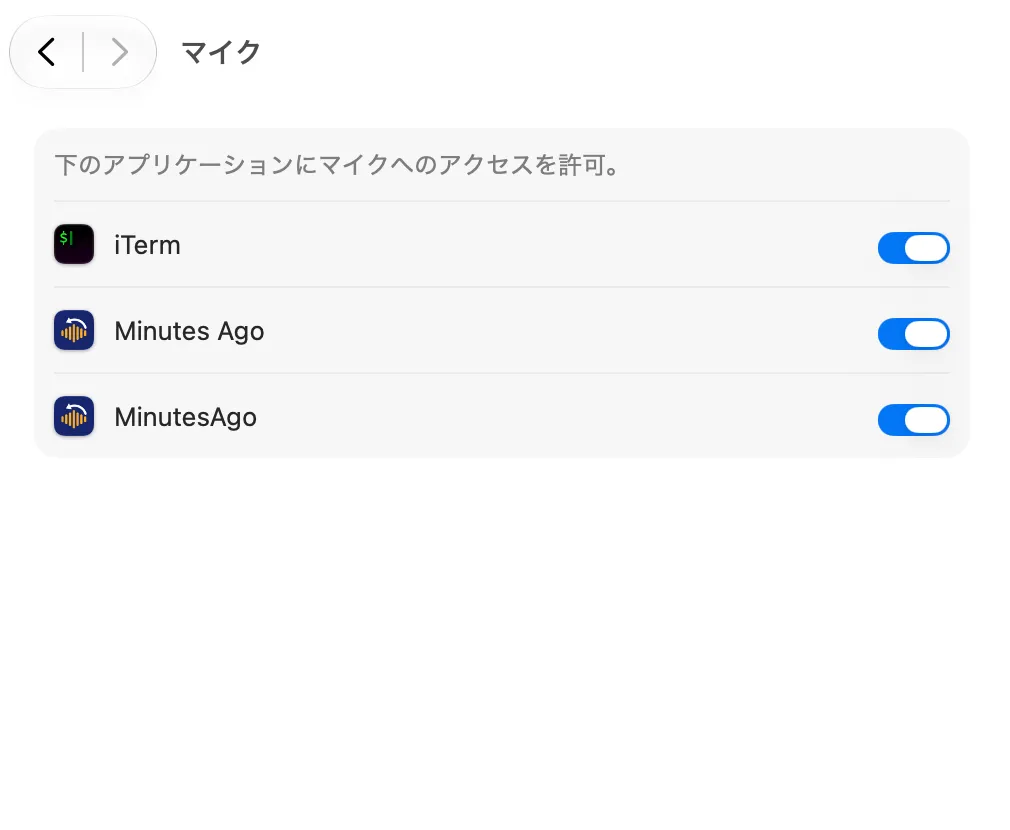
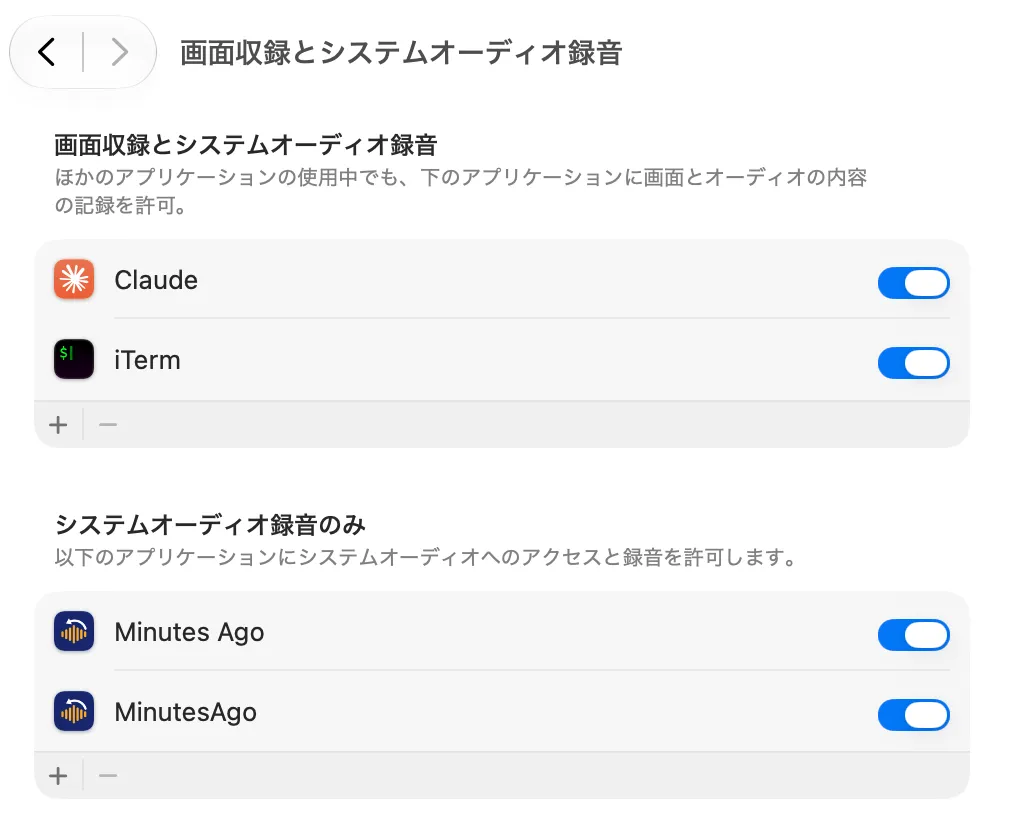
Minutes Ago asks for up to three macOS permissions. You can withdraw any of them at any time in System Settings › Privacy & Security.
| Permission | When it is requested | Where |
|---|---|---|
| Microphone | In the first-run guide, or when recording starts | Privacy & Security › Microphone |
| System audio recording | Only the first time you choose an app for App Audio. Only that app’s sound is recorded | Privacy & Security › Screen & System Audio Recording (under System Audio Recording Only) |
| Screen Recording (screenshots) | Only when you start a meeting with screenshots from the menu or the Recordings & Minutes window. Agents, Shortcuts, keys from any app and Add Screenshot never ask. macOS may ask again from time to time whether Minutes Ago may keep recording the screen | Privacy & Security › Screen & System Audio Recording |
Uninstalling
On macOS, moving an app to the Trash may leave its container (~/Library/Containers/com.kurokoto.minutesago/) behind.
- First choose Pause ▸ Erase Live Audio… in the menu, and Delete All Saved Recordings… in Settings › Library.
- Quit Minutes Ago and move it to the Trash.
- To remove the rest as well (settings, presets, replacement dictionary, downloaded models), delete the container too. To free the space of the models only, delete them in Settings › Models.
Exported files stay in the folder you chose. The number of free tries used stays in the Keychain.
For IT administrators
Points to check when approving Minutes Ago:
- Permissions: the microphone; system audio recording only when App Audio is used (the chosen app only); Screen Recording only when the user starts a meeting with screenshots from the menu or the window (the chosen app’s window only, a red dot on the menu bar icon while capturing).
- Start of recording: nothing is recorded until the user clicks Start Recording in the first-run guide. While recording, the menu bar icon and macOS’s microphone indicator show it. Start at login is off by default.
- Storage: transcripts, settings, saved recordings (
library/), the screenshots of the meeting in progress (shots/) and the downloaded models in the app container~/Library/Containers/com.kurokoto.minutesago/; recent audio in the app’s memory by default (in the container when the app quits, during a meeting, or when the SSD is chosen in the settings); the API keys, agent access token and number of free tries used in the Keychain; exported files in a folder the user chooses. - Retention: live audio at most 24 hours (a meeting is kept from its start until it ends, up to 24 hours). There is no unlimited setting. Saved recordings stay until the user deletes them.
- Disk space for models: the speaker model (about 200 MB) is downloaded on first use. Transcription models are downloaded only when the user chooses them in Settings › Models, after a question that shows the size (1.64 GB, 645.7 MB, 619.1 MB, 2.19 GB; about 5.3 GB with all of them and the speaker model). Preparing Cohere Transcribe (Beta) also leaves a Core ML cache of about 2.2 GB in the container’s caches, which Delete… in Settings › Models does not remove.
- Network: only the connections above (seven for the App Store version, eight for the direct version). Transcribing again with any model runs on this Mac and sends no audio. Even when minutes are written by an external AI provider, only transcript text (and screenshots, only with Include screenshots on) is sent, never audio, and the user is asked first with the destination shown.
- Agent access: off by default. When on, the App Store version listens on no network port: the MCP client starts the app’s own executable, which relays through a socket in the app’s container that accepts only the same user’s programs holding the token. The direct version listens on
127.0.0.1only, with a token and Host / Origin checks. - Accounts and analytics: no account, no analytics, advertising or tracking.
- Recording notice: the app reminds users to tell participants they are recording, in the first-run guide and before the first export (Terms of Use, Article 3). Screenshots can show participants’ faces and names, chat, shared documents and notifications.
- Provider: Kurokoto Lab (Yuji Kuroko), support@kurokoto.com.